
Hi, my name is Frazer and welcome to GPU Solutions. Over the last few months, I’ve worked on several RTX 3070 8GB → 16GB upgrades across different brands and conditions:
- A ZOTAC RTX 3070 proof-of-concept upgrade that initially had a black screen after load.
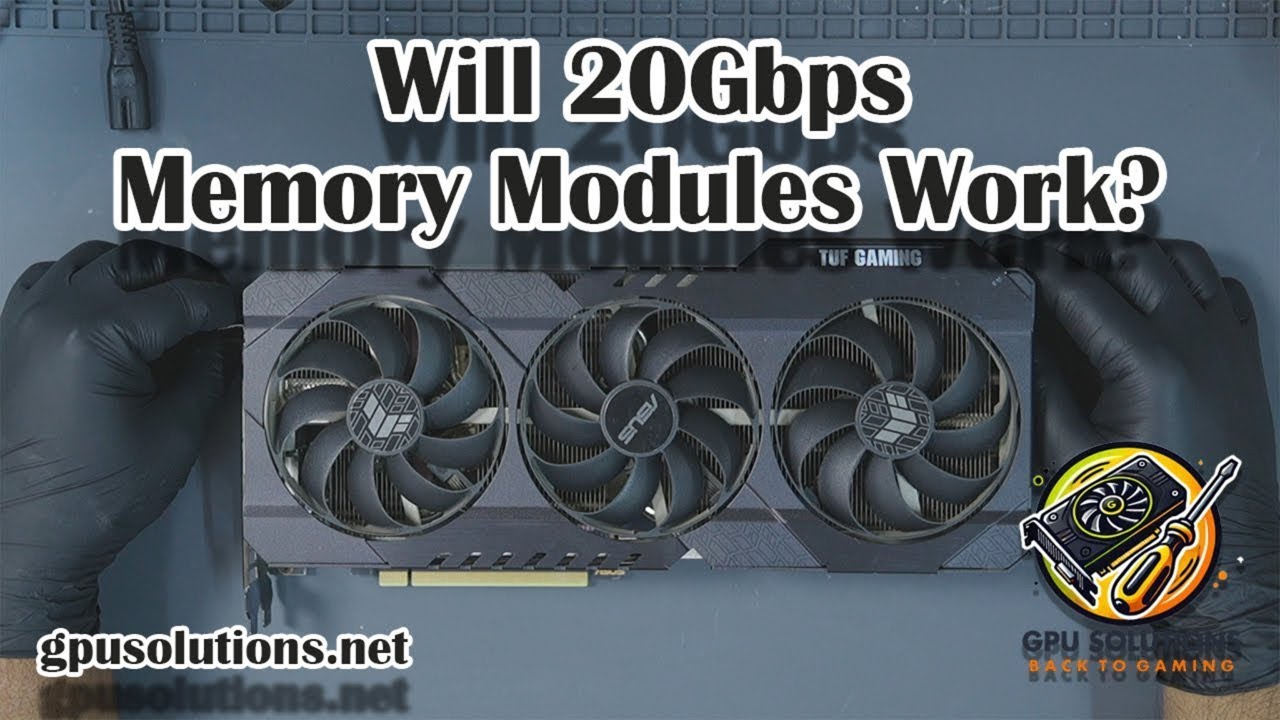
- An ASUS TUF RTX 3070 where the customer requested 20Gbps memory modules – and we found out why that doesn’t work.
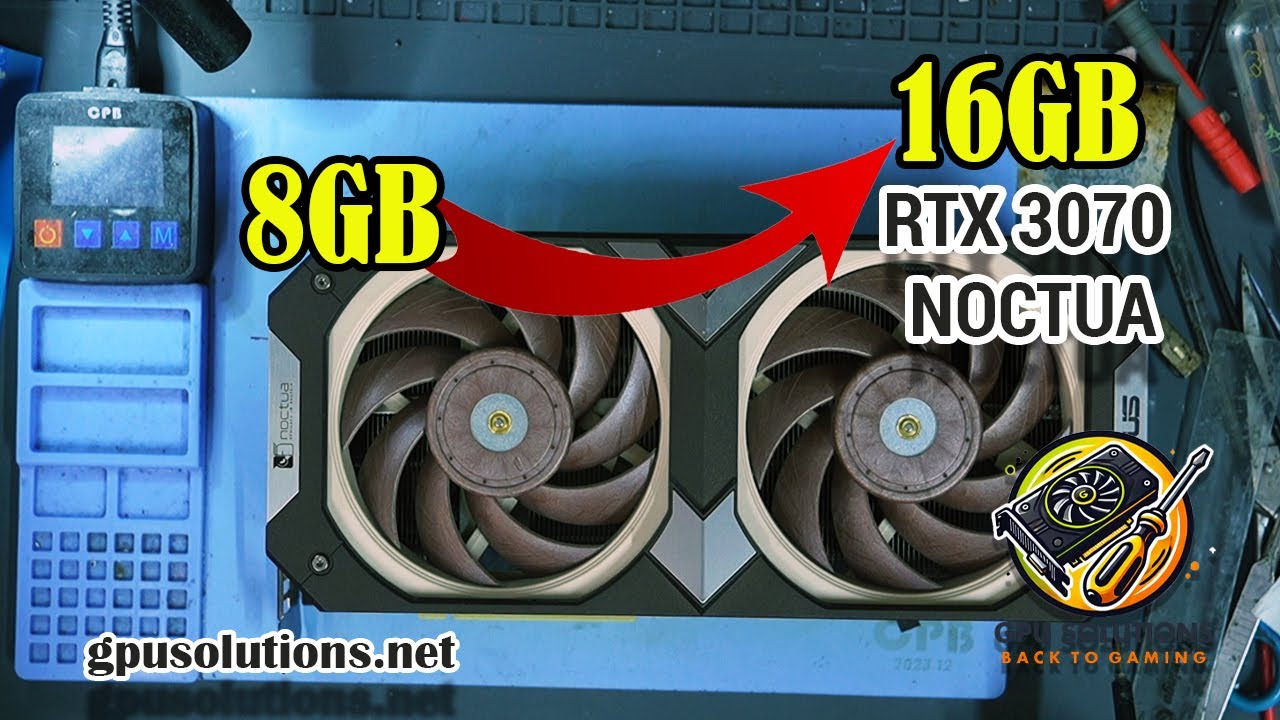
- An ASUS Noctua RTX 3070 that arrived after a failed DIY attempt, with exposed traces and missing components, and was fully repaired and upgraded.
This article combines all three stories into one detailed guide so you can understand:
- Why upgrading an RTX 3070 to 16GB can matter.
- What is technically happening under the hood (VRAM, straps, BIOS limits).
- What can go wrong – and how I fixed it in each case.
Important: this is not a beginners’ how-to. These are advanced, high-risk modifications that require solid BGA rework skills and proper tools. Attempt them at your own risk.
Why 8GB on RTX 3070 Is Becoming a Problem
On paper, the RTX 3070 is a powerful card. But its 8GB VRAM is increasingly a bottleneck in modern games.
In demanding titles like Cyberpunk 2077, The Last of Us Part I, or Microsoft Flight Simulator, it’s easy to push past the 8GB VRAM limit, especially at 1440p and 4K with high or ultra textures.
When that happens, this is what you typically see:
- Stuttering and frame-time spikes
- Lag when you pan the camera or move into new areas
- Occasional crashes or black screens in extreme cases
Why? Because once VRAM is full, the GPU starts spilling into system RAM, which is much slower. Latency goes up, frame pacing falls apart, and your experience suffers—even if your FPS counter looks okay.
Upgrading from 8GB to 16GB doesn’t magically increase raw GPU compute, but it gives the card a much larger buffer to hold high-resolution textures and game data, which can:
- Improve 1% and 0.1% lows
- Reduce stutter when VRAM-heavy scenes load
- Help “future-proof” the card for upcoming games that expect more than 8GB
How the RTX 3070 8GB → 16GB Upgrade Works
An RTX 3070 16GB mod relies on a few key facts:
- It uses GDDR6 memory, not GDDR6X.
- The stock card uses 1GB Samsung GDDR6 chips.
- You can swap those for 2GB Samsung GDDR6 chips of the same generation (14Gbps or 16Gbps).
- The PCB and BIOS support the correct memory configuration when the strap resistors are set properly.
In simple terms:
- You remove all 1GB GDDR6 memory chips.
- You install 2GB GDDR6 chips in the same positions.
- You reconfigure the strap resistors so the BIOS knows it now has 2GB Samsung modules per channel.
- The card then exposes 16GB VRAM to the driver and operating system.
Straps in short: strap resistors are tiny 100kΩ resistors that sit on specific lines. If a strap is tied to 1.8V, it represents a binary 1. If it’s tied to ground, it represents a 0. The combination (for example, 1-1-0) tells the BIOS which memory type/capacity is installed.
Case 1 – ZOTAC RTX 3070: First 8GB → 16GB Mod & the Black Screen Issue
Step 1 – Memory Swap
The first RTX 3070 I upgraded was a ZOTAC RTX 3070. It arrived with:
- Samsung 1GB GDDR6 modules (8 chips = 8GB total).
- Fully working core and VRM.
The plan was to replace those with 2GB Samsung GDDR6 modules. In the first round I used 2GB 14Gbps Samsung chips, later I also tried 2GB 16Gbps variants when troubleshooting.
The process:
- Preheat the board on a preheater.
- Use hot air to remove all original memory modules.
- Clean the pads with flux, solder wick and isopropyl alcohol until they’re flat and shiny.
- Install new 2GB Samsung GDDR6 modules using hot air reflow.
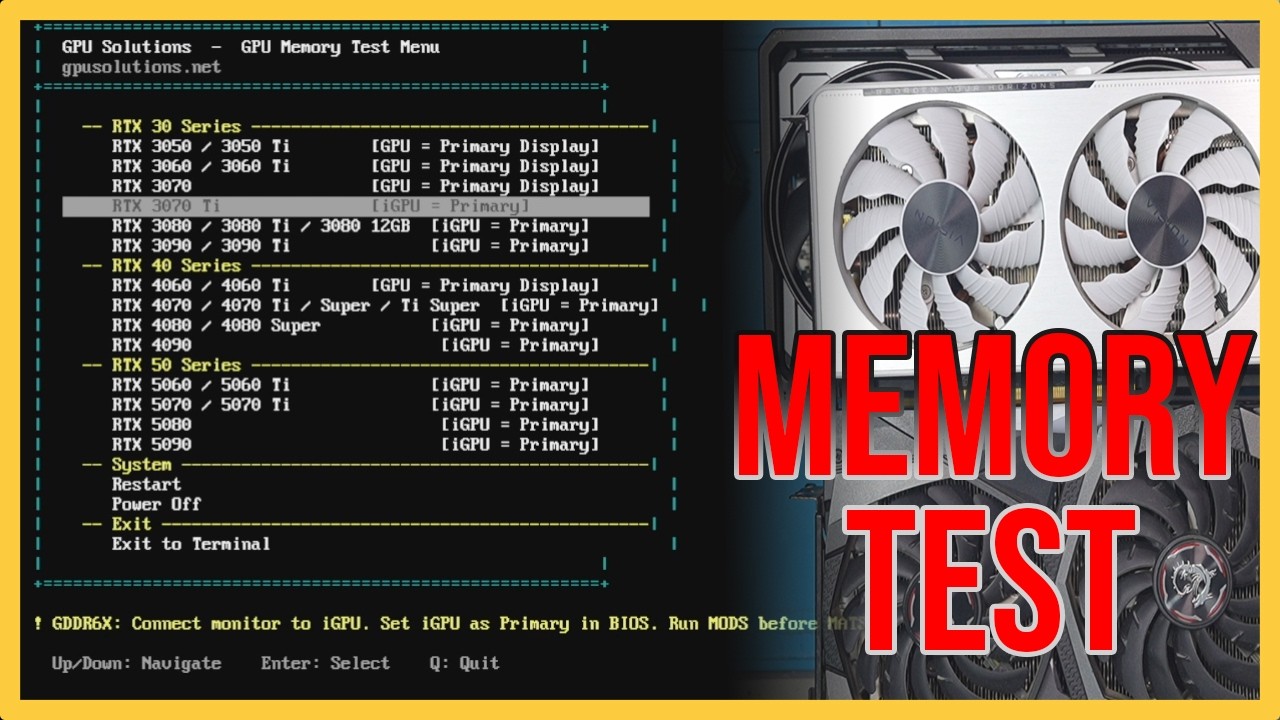
Once everything cooled down, I ran MATS (NVIDIA’s memory test) to verify the installation. MATS passed, which confirmed that the memory was soldered and connected correctly.
Step 2 – Setting the Straps for 2GB Samsung
Next, I needed the BIOS to correctly recognize the 2GB Samsung modules. That’s where strap resistors come in.
On this ZOTAC board, the strap network uses three strap bits that can be set to either high (1.8V) or low (ground). For 2GB Samsung, the correct combination was:
- Strap 2: 1 (high)
- Strap 1: 1 (high)
- Strap 0: 0 (low)
In short: 1-1-0.
I located the strap resistors, moved the 100kΩ parts into the appropriate positions (high or low), cleaned up, reassembled the card, and installed it on the test bench.
In Windows, GPU-Z reported 16GB of VRAM and MATS still passed. So at this stage, the mod was technically working.
Step 3 – The Strange Black Screen After Load
Under stress, the GPU behaved well:
- FurMark – ran fine under full load.
- Superposition – passed.
- Heaven – passed.
- OCCT – I pushed memory utilization to over 14GB and it still passed.
But there was one big problem: as soon as the load stopped, the system would go to a black screen. No signal. The card would crash when coming off load.
I suspected:
- Power delivery to the memory (30A FETs on the memory rail).
- Combined with PSU voltage drop (12V sagging to around 11V under load).
I tried:
- Reballing the GPU core.
- Changing from 14Gbps to 16Gbps 2GB modules.
The behavior stayed the same: stable under load, black screen when the stress test stopped.
Step 4 – The Fix: Nvidia Control Panel Power Management
Several viewers suggested trying a power management tweak in the Nvidia Control Panel. The key setting is:
- 3D Settings → Power management mode → Prefer maximum performance
Once I changed that, the behavior completely changed:
- Stress tests ran fine.
- Stopping tests no longer caused black screens.
- The card stayed stable on the desktop and in normal use.
This workaround keeps the GPU from aggressively power-saving between load and idle, which seems to be what was causing the instability on this specific mod.
Step 5 – Real-World Gaming Tests
To verify that the upgrade and fix were truly practical, I moved the card to my Ryzen 9 5950X workstation and tested:
- Red Dead Redemption 2
- Far Cry 6 (benchmark, 1440p, ultra, FSR off)
- A Plague Tale: Requiem (ultra settings with ray tracing)
In these tests:
- VRAM usage could exceed 8GB, sometimes reaching up towards 10GB+.
- Gameplay remained smooth with no post-load black screens.
- The system recognized and used the extra VRAM without issues.
Not all games will necessarily behave perfectly (NVIDIA doesn’t officially support 16GB on a 3070), but in these real tests the upgrade was fully usable.
Case 2 – ASUS TUF RTX 3070: Why 20Gbps Memory Failed
Customer Request: 20Gbps 2GB Modules
Next, I worked on an ASUS TUF RTX 3070 sent in specifically for a 16GB upgrade. The customer had a special request: he wanted 2GB 20Gbps GDDR6 modules installed.
I hadn’t tried this combination before, so I treated it as an experiment to see if the BIOS would handle it.
Baseline Testing
Before any upgrade, I always check stability:
- Install the GPU on the bench, boot to Windows, install drivers.
- Run FurMark – core at around 65°C, hotspot around 77°C.
- Run benchmarks:
- Superposition: ~11,380
- 3DMark Nomad: ~3,198
- 3DMark Speedway: ~3,533
The GPU was stable and healthy, so it was safe to proceed.
Thermal Putty Problem
When I opened the card, I found thermal putty stuffed all around the core and memory modules.
That’s a serious problem:
- Putty can creep under BGA chips over time.
- It can lift pads, crack solder joints and cause “gray pad” failures.
- On tightly packed GPUs (3080, 3090, 4090) it can force you to lift the entire core just to fix memory issues.
In this case, the 3070 layout is a bit more forgiving, but I still:
- Removed all the putty around core and memory.
- Cleaned thoroughly with isopropyl alcohol.
Attempt #1 – 2GB 20Gbps Modules
I removed all original memory, prepared the pads, and installed 2GB 20Gbps GDDR6 modules.
After installation:
- MATS passed – the memory was soldered correctly.
- I set the straps to the correct 16GB Samsung configuration:
- On ASUS boards near the crystal: strap 2, strap 0, strap 1 (top to bottom).
- For 2GB Samsung: strap 2 = high, strap 1 = high, strap 0 = low → 1-1-0.
However, when I booted into Windows:
- It showed the Windows logo.
- Then either crashed or went to a black screen.
After multiple attempts, it was clear: the GPU would not boot properly with 20Gbps modules, even though MATS passed.
The conclusion: the BIOS had timings only for 14Gbps memory. It did not have valid entries for 20Gbps GDDR6, so the card simply couldn’t operate stably with those chips.
Attempt #2 – 2GB 16Gbps Modules (Success)
I contacted the customer, explained the situation, and he agreed to switch to 2GB 16Gbps Samsung GDDR6 modules instead.
The procedure was identical:
- Remove the 20Gbps modules.
- Prepare the pads again.
- Install the 2GB 16Gbps modules.
- Set the same 1-1-0 strap configuration.
- Clean, reassemble, and test.
This time:
- MATS passed.
- Windows booted normally.
- Drivers installed correctly.
- GPU-Z reported 16GB of VRAM.
For extra stability, I again set Nvidia Control Panel → Power management mode → Prefer maximum performance.
Benchmarks After the Upgrade
With 16Gbps 2GB modules installed:
- FurMark: core at ~62°C, hotspot at ~72°C (slightly better thermals after cleaning and fresh pads/paste).
- Superposition: ~11,289.
- 3DMark Nomad: ~3,162.
- 3DMark Speedway: ~3,425.
The scores were slightly lower than the original baseline because the BIOS still runs the VRAM at 14Gbps timings. It doesn’t “know” we installed 16Gbps chips.
However, on these ASUS boards, 16Gbps modules can typically be safely overclocked by ~1000–1500MHz using MSI Afterburner (or another OC tool), which can recover or exceed the original performance.
Finally, I ran OCCT for 10 minutes, using the full memory pool. No errors, no instability. The card was ready to return to the customer as a working RTX 3070 16GB.
Case 3 – ASUS Noctua RTX 3070: Fixing a DIY Upgrade Gone Wrong
What the Card Looked Like on Arrival
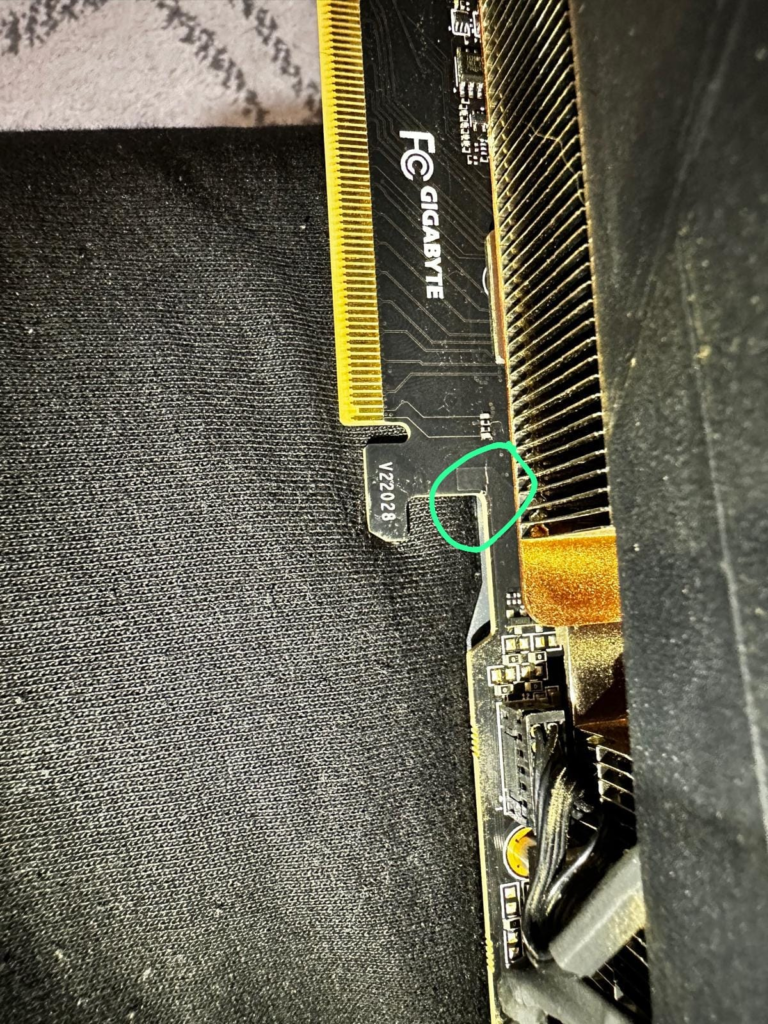
The third card was an ASUS Noctua RTX 3070 – a huge, four-slot cooler – and it arrived after a failed DIY VRAM upgrade attempt.
The owner had:
- Already removed the original memory chips.
- Sent the card to me along with new memory modules from AliExpress.
Under the microscope, I saw:
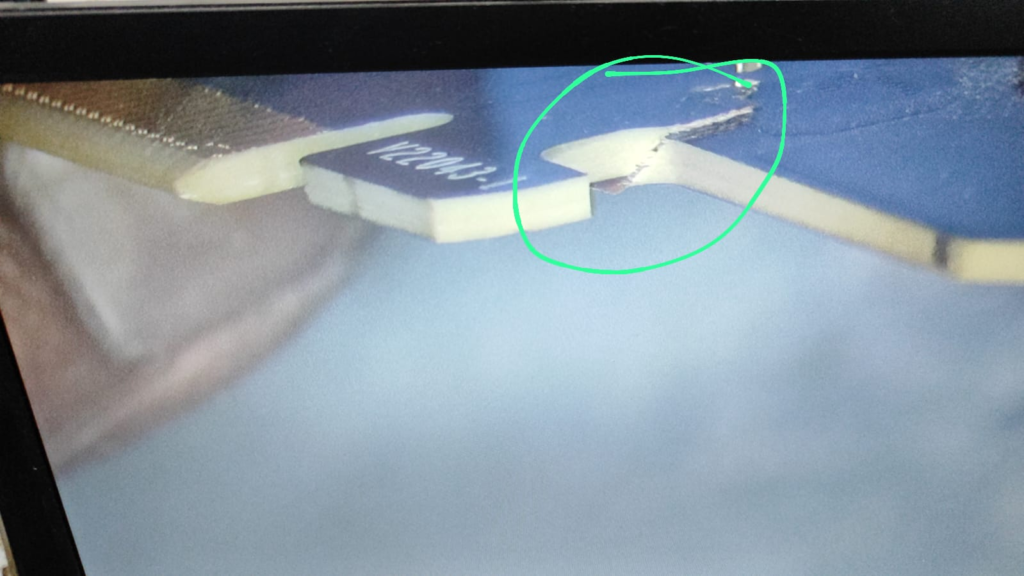
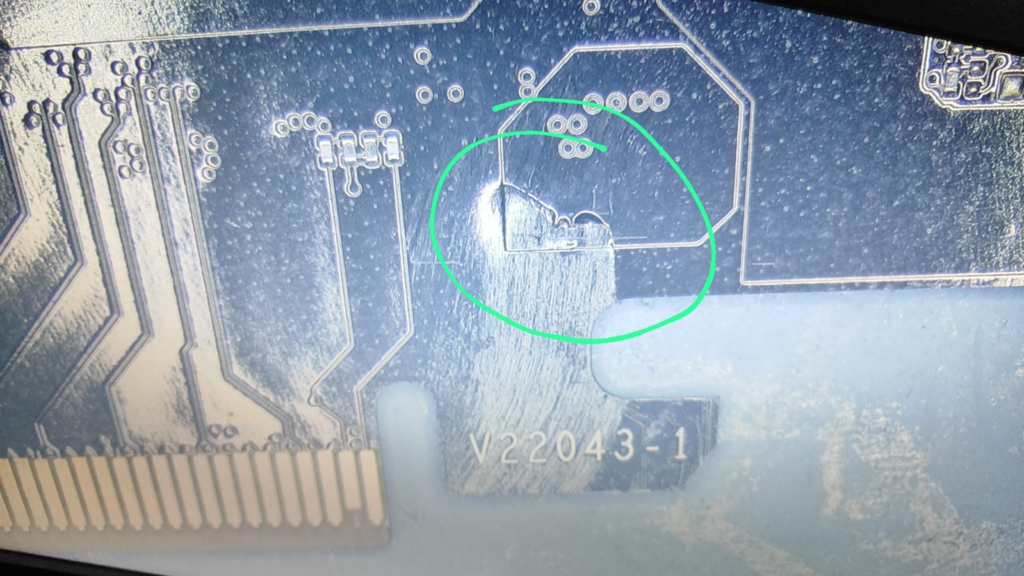
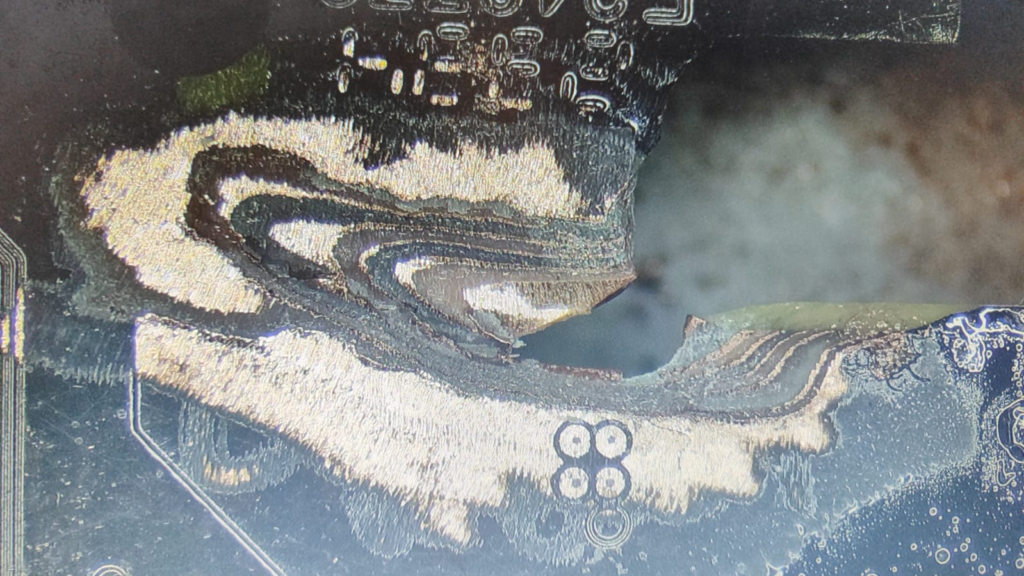
- Pads that weren’t flat and had a gray appearance (usually too much heat or too little flux).
- Scraped solder mask exposing copper traces.
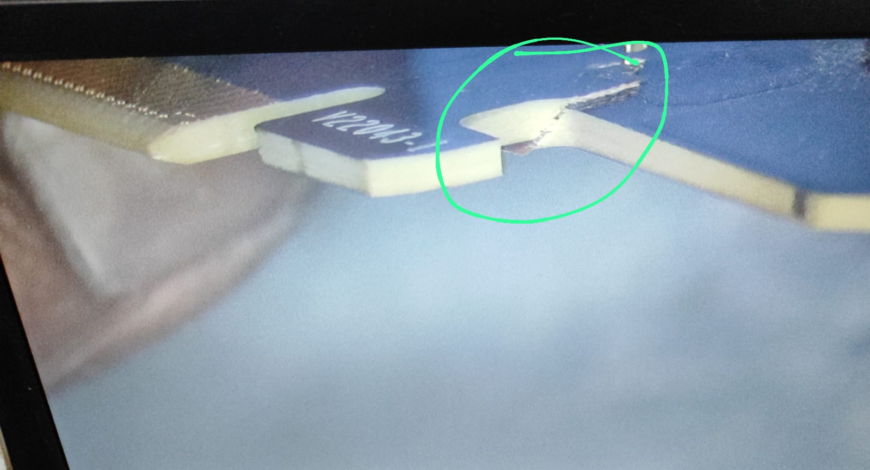
- Some knocked-off components (capacitors and resistors).
To be fair, the memory removal wasn’t the worst I’ve seen, but leaving exposed copper and missing components is a serious problem for reliability.
Step 1 – Repairing the PCB
I started by:
- Preheating the board to around 120°C.
- Adding leaded solder to the pads to reduce the melting point.
- Using solder wick to flatten the pads properly.
- Cleaning everything with 99.9% isopropyl alcohol.
Then I addressed the damage:
- Applied UV solder mask to cover exposed copper traces.
- Cured the mask.
- Replaced missing components (filter capacitors and critical resistors) from a donor board.
Once all components were replaced and the pads were in good condition, I double-checked resistance to confirm there were no shorts and that the rails looked normal.
Step 2 – Installing New Memory Modules
With the board repaired, I:
- Preheated the PCB again.
- Applied flux to both the PCB pads and the new memory modules.
- Aligned each chip and used hot air to reflow them into place.
Alignment doesn’t need to be microscopically perfect; as long as you’re close, surface tension during reflow will pull the chip into the correct position. But you must avoid overheating and pad damage.
After installing all modules and letting the board cool, I ran MATS. It passed, confirming that all memory chips were correctly soldered and making proper contact.
Step 3 – Setting the Straps
Just like the other boards, this Noctua uses three strap bits near the crystal:
- Top: strap 2
- Middle: strap 0
- Bottom: strap 1
Originally, with 1GB Samsung modules, the configuration was 0-0-0 (all low). For 2GB Samsung, the correct configuration is 1-1-0:
- Strap 2 = high
- Strap 1 = high
- Strap 0 = low
I moved the 100kΩ resistors accordingly, cleaned the area, and reassembled the card.
Step 4 – Pads, Paste & Final Testing
Since this card arrived without proper thermal pads, I installed new 2mm pads on both memory and MOSFET areas, applied fresh thermal paste to the GPU core, and put the cooler back on.
On the test bench:
- Windows installed the drivers correctly.
- GPU-Z reported 16GB of VRAM.
- The Nvidia control panel was set to Prefer maximum performance.
I then ran:
- FurMark – temps normal, no instability.
- Superposition 4K Optimized – score around 11,269.
- 3DMark Nomad and Speedway – healthy scores, no crashes.
The repair and the upgrade were both successful. This ASUS Noctua RTX 3070 went from a damaged, non-booting DIY attempt to a fully working 16GB card.
Tools & Skill Level Required
If you’re even thinking about attempting a 3070 VRAM upgrade yourself, here’s what you realistically need:
- Microscope – for inspecting pads, traces and solder joints.
- Preheater – to gently and evenly warm the board from below.
- High-quality flux – to ensure proper wettability and prevent oxidation.
- Hot air / BGA rework station – for safe removal and installation of memory chips.
- Soldering iron – for pads cleanup and small component work.
- Solder wick – to flatten pads and remove excess solder.
- Leaded solder wire – to mix with lead-free solder and reduce the melting point.
- Correct 2GB GDDR6 memory modules – from a reliable source.
- 99.9% isopropyl alcohol – for cleaning.
- Boardview and schematics (where available) – to identify straps and key components.
- Test bench – for initial power-on and diagnostics.
- Memory testing software (MATS/MODS, OCCT, etc.) – to verify VRAM integrity.
- Stress testing tools – FurMark, Superposition, 3DMark, etc., to validate stability.
On top of that, you need experience. I strongly recommend learning on dead boards first. Removing and reinstalling BGA memory without lifting pads or damaging traces takes time and practice.
When an RTX 3070 16GB Upgrade Makes Sense
An RTX 3070 16GB mod is most relevant if:
- You already own a good RTX 3070 and want to extend its life.
- You play VRAM-heavy games at 1440p or 4K with high/ultra textures.
- You do workloads (light AI, content creation) where extra VRAM can help.
- You’re okay with the fact that this is unsupported by NVIDIA and some games may behave oddly.
It’s less about raw FPS gains and more about smoother performance under heavy VRAM use and giving an already capable GPU more headroom for modern and future titles.
Final Thoughts
Across three different RTX 3070s – a ZOTAC, an ASUS TUF and an ASUS Noctua – the story is consistent:
- 2GB GDDR6 Samsung modules + correct strap configuration + good BGA work = a working 16GB RTX 3070.
- 20Gbps modules don’t work when the BIOS only has timings for 14Gbps – even if MATS passes.
- Driver and power management quirks can matter; the “Prefer maximum performance” tweak in the Nvidia control panel was key to solving the black screen issue on the first mod.
- DIY attempts without proper tools and experience can cause significant damage, but they can sometimes be repaired if no critical pads are torn.
If you enjoyed this deep dive into GPU upgrades and repairs, you can:
- Watch the full upgrade videos on my YouTube channel GPU Solutions.
- Like, comment and share if you found it helpful.
- Support the channel via memberships or the Thanks button – this helps fund more experiments like these.
Thanks for reading, and I’ll see you in the next repair or upgrade story. Cheers!
Book Your Upgrade. Select the brand, select RTX 3070, fill in your information, and submit.








Recent Comments